Ph. 9424102030
mail@medialab.in

UniCMSx9 Information Portal
Tutorials, Features, Pricing

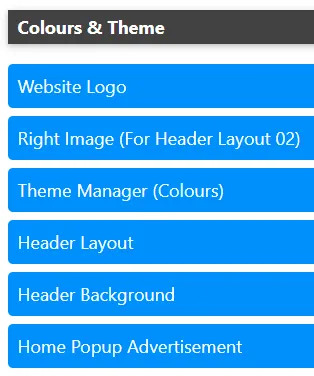 In addition to all the contents, UniCMS Allows you to customise the colours and texture of the contents of your website as well.
Website Logo: You can upload any image to serve as the logo. A png or webp file with a transparent file is recommended. Size is not a constrain here, but a file of around 400px height is recommended for sharpness. To upload the file, simply click on Website Logo link and upload the file. The same logo will also show up against your website in search engines, social media, title bar and bookmarks.
Right Image: This right image is displayed only when you choose the Header Layout 2. It remains hidden in other layouts. Additionally, it also remains hidden in mobile irrespective of the header layout selected.
Theme Manager: It is discussed below in a separate block separately.
Header Layout: The system allows you to have various layouts for the contents of the header. You can switch between these layouts with single click. No data is lost if you change the active header layout and you can change to any other layout anytime.
Header Background: This adds a texture to your header background. we have a huge collection of various textures. You can see a small preview of each texture before you apply one of them.
Home Popup Ad: It is discussed below in a separate block
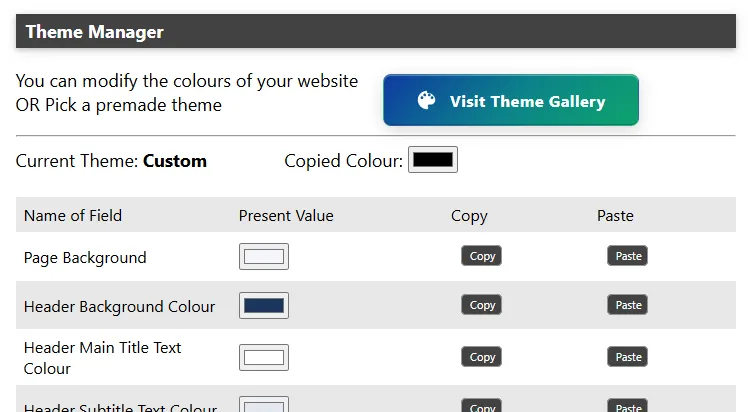 You can select custom colours for more than 20 Major elements. Colours of other elements are automatically derived from these major colours maintaining a theme in the entire website.
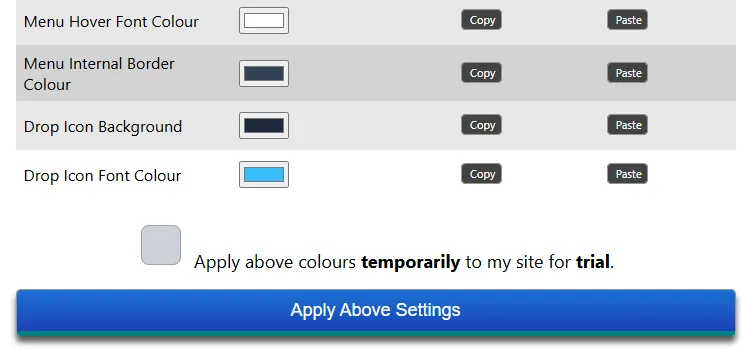 If you want to apply the customisation without making it permanent so that you can revert to your previous setting, the system allows you to do that too. Just select the preview mode and the settings will be applied without actually saving them to your customisation. You can refresh and check your site and if the customisation suits you, you can finalise it.
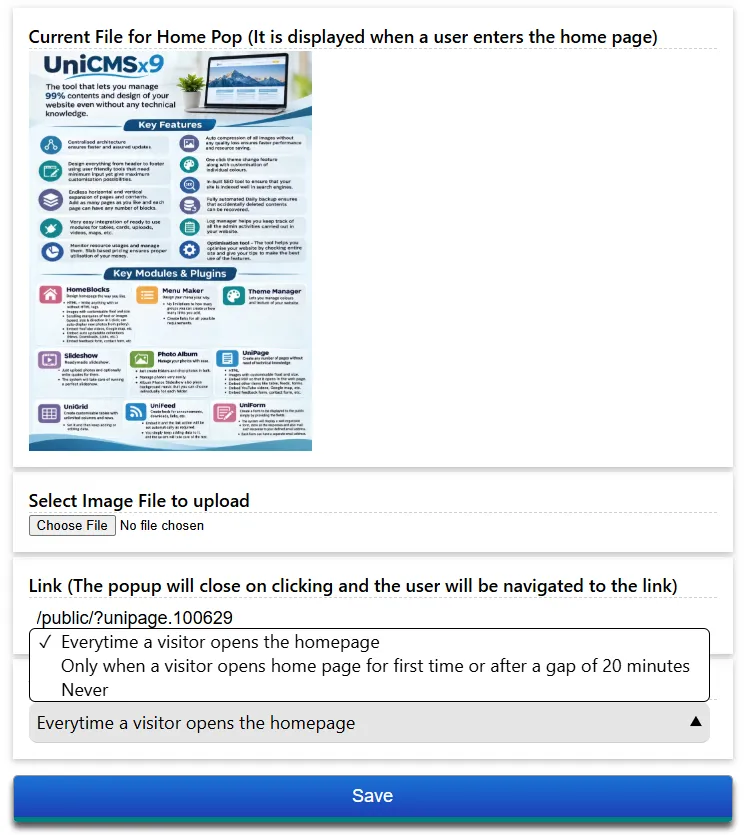 This feature allows the admin to upload any image that will popup when a visitor enters the website.
1. Select the image that you want to show. It can be any image and should be at least 500px wide and 800px in height to get displayed in good quality. You can also upload larger images and in other aspect ratios.
2. By default, the advertisement will close on clicking and the user will see the Home Page of the website. If you want to show some other page when the user clicks the image, please enter the URL of that page in the URL Box.
3. If you want the popup to be displayed whenever a user opens the home page, select first option in the drop down. If you want it to show up only when a user opens the home page initially or after a gap of at least 20 mins, then select the second option. To disable the popup, select the third option.
